

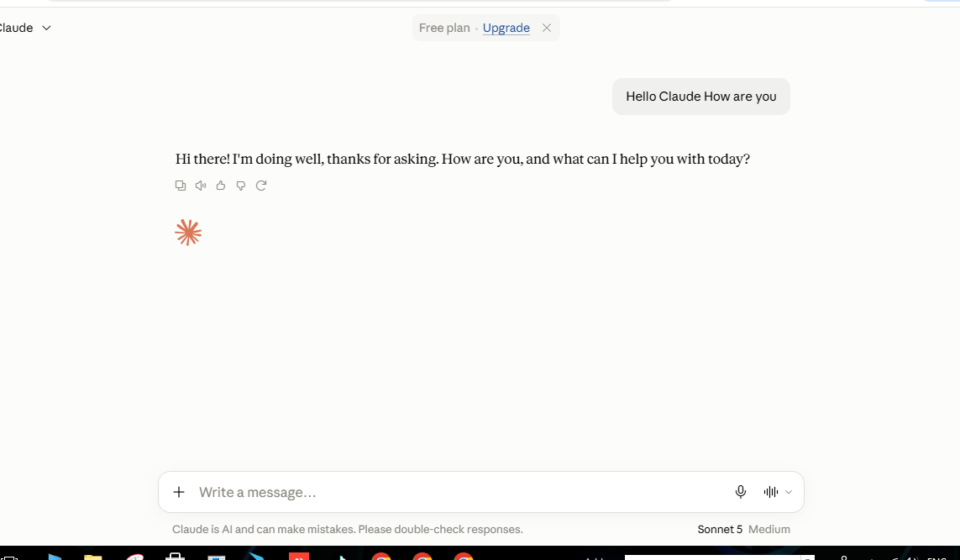

Learning how to use Claude AI takes just a few minutes, but knowing its features well enough to get real value out of it takes a bit more guidance. This guide walks through everything from creating an account to using Claude’s more advanced tools, so you can go from a blank chat box to confidently working with Claude on real tasks.
What Is Claude AI?
Claude is an AI assistant built by Anthropic. People use it for writing, research, coding, data analysis, and general problem-solving through a simple chat interface. Anyone learning how to use Claude AI for the first time will find it works similarly to other AI chat tools: you type a message, Claude responds, and the conversation continues from there.
Getting Started: Creating Your Account
- Go to claude.ai and sign up with an email address, Google account, or phone number.
- Verify your account through the confirmation link or code.
- Choose a plan Claude offers a free tier as well as paid plans with higher usage limits and access to more capable models.
Step-by-Step: How to Use Claude AI
1. Start a Conversation
Click “New Chat” and type your question or task directly into the message box. Claude works best with clear, specific requests rather than vague ones.
2. Write Effective Prompts
The quality of Claude’s response depends heavily on the quality of your prompt. A few tips:
- Be specific about what you want (format, length, tone, audience)
- Give context background info, examples, or constraints
- Break complex tasks into smaller steps
- Ask Claude to think step by step for reasoning-heavy tasks
3. Upload Files
Claude can read documents, spreadsheets, PDFs, and images. Click the paperclip icon, upload your file, and ask Claude a question about it summarizing a report, analyzing a spreadsheet, or extracting data from a PDF.
4. Use Projects
Projects let you group related conversations and give Claude persistent context like a style guide, brand voice, or reference documents so you don’t have to re-explain background information every time.
5. Generate Documents, Slides, and Code
Claude can create downloadable files such as Word documents, spreadsheets, presentations, and code files, and can build interactive web pages or small tools directly in the chat.
6. Try Claude Code (for Developers)
For coding tasks, Claude Code lets developers delegate work writing scripts, debugging, or building features directly from the terminal, an IDE, or a desktop app.
7. Refine Through Follow-Up
Claude AI conversations are iterative. If a response isn’t quite right, tell Claude what to change rather than starting over it will revise based on your feedback.
Tips for Getting Better Results from Claude AI
- Give one clear task per message when possible
- Ask for a specific output format (bullet points, table, code block)
- Provide examples of what “good” looks like
- Use follow-up messages to refine rather than rewriting your original prompt
Common Use Cases
- Drafting emails, articles, and marketing copy
- Summarizing long documents or meetings
- Writing and debugging code
- Analyzing data and building reports
- Brainstorming and outlining projects
- Research and fact-finding
Frequently Asked Questions
Is Claude AI free to use?
Yes, Claude offers a free tier with usage limits, alongside paid plans for higher limits and advanced features.
Can Claude AI write code?
Yes. Claude can write, explain, and debug code across most major programming languages, and Claude Code extends this into full development workflows.
Is Claude AI safe for business use?
Claude is used by businesses for drafting, analysis, and coding, with enterprise plans offering additional security and admin controls.